When you apply for a job online, your resume usually lands in an applicant tracking system (ATS) before anyone reads it. That sounds alarming, and a lot of advice online makes it sound worse than it is. This guide explains what an ATS actually does, which formatting choices help or hurt, how to use keywords without stuffing them, and ends with a checklist you can run through before every application.
What an applicant tracking system actually does
An ATS is the software an employer uses to receive applications, store them and move candidates through hiring. When your resume arrives, the system typically does two things with it.
- It parses the file. The software pulls the text out of your PDF or Word document and sorts it into fields: name, email, phone, job titles, employers, dates, education and skills. That record is what the recruiter sees first in many systems.
- It makes you searchable. Recruiters search and filter the candidates they have, by job title, skill, location or a keyword from the role. Some employers also add screening questions to the application form, such as whether you have the right to work in a country.
Then a person reads the resume. So an ATS-friendly resume has two jobs: it has to come out of the parser intact, and it has to contain the words a recruiter is likely to search for, because those words are true of you.
The “75% of resumes are rejected by robots” claim is a myth
You may have seen a statistic saying most resumes are thrown out by software before a human sees them. There is no reliable study behind that number, and it does not describe how most systems work. In most cases the ATS does not decide on its own to reject you because of a layout. Filtering rules, where they exist, are set by each employer, and many recruiters simply search and read.
What does happen is quieter. A resume that parses badly produces a messy record: a missing phone number, two jobs merged into one, dates attached to the wrong role. A resume that never uses the language of the role is harder to find in a search. Neither is a robot saying no; both make it easier for a person to pass you over.
Formatting that parses cleanly
Most parsing problems come from layout choices that look good on screen but read badly as plain text. A good test: copy all the text from your resume and paste it into a plain text editor. If it reads in a sensible order, a parser will probably manage too.
Use one column
Many parsers read straight across the page. A sidebar of skills beside your experience can end up woven into your job descriptions, line by line. Some newer systems handle simple columns, but when you do not know which system an employer uses, one column in reading order is the safest choice.
Use standard section headings
Parsers look for familiar words to know where each section starts. Use headings such as Summary, Experience, Education, Skills, Projects and Certifications. “My journey” or “Where I have made an impact” reads well to a person but gives the software nothing to recognise.
Keep everything as real text
Text inside images, icons, logos or text boxes may carry nothing a parser can read. A phone icon instead of the word “Phone”, or skill bars and star ratings instead of listed skills, are common examples. A scanned or photographed resume has no text at all, so always export from the document itself.
Put your name, email, phone number and city in the body of the page, not in the document header or footer, which some systems skip.
Choose a common font and a plain structure
Standard fonts such as Arial, Calibri, Georgia or similar sans-serif and serif faces render reliably. Keep bullets simple (a round bullet or a dash), and avoid tables for layout.
Write dates the same way every time
Pick one format, such as “Mar 2022 – Jun 2024” or “03/2022 – 06/2024”, and use it for every role, with a start and an end (or “Present”). Mixing “Spring 2023”, “2023-01” and “Jan 2023” makes it harder for the system and the recruiter to work out how long you held each job.
Keywords: use the job ad’s language, honestly
Keywords are simply the words a recruiter would type to find someone like you: the job title, the tools, the skills and the qualifications in the ad. If the posting asks for “stakeholder management” and your resume only says “worked with teams”, a search for the first will not find the second, even if you did exactly that work.
Some practical rules:
- Mirror the exact wording where it is true. If the ad says “accounts payable”, do not only write “AP”. If it says “project management”, use that phrase rather than a synonym.
- Put your target job title near your name, worded the way the ad words it, if it honestly describes you.
- Use keywords in context. A skill listed in your Skills section and shown in a bullet about a real result is far more convincing than a skill that appears only in a list.
- Spell out acronyms once, for example “search engine optimisation (SEO)”, so either form can be found.
- Never add skills you do not have. Hidden white text, pasted job descriptions and long keyword lists may get you into a search result, but a recruiter will notice in seconds, and an interview will expose it.
Here is what using the ad’s language looks like in a single bullet, for an operations role that asks for “inventory management” and “cost reduction”:
Before: Responsible for stock and suppliers at the warehouse.
After: Ran inventory management for a 40,000-item warehouse and renegotiated three supplier contracts, cutting delivery costs by 12% in a year.
The second version uses the employer’s terms, says what you did and shows a result. The numbers have to be yours, of course; if you do not have one, describe the scale or the outcome instead. For a fuller walk-through of matching a resume to a specific posting, see how to tailor your resume to a job description.
PDF or Word?
Both are generally fine. Most current systems read a text-based PDF without trouble, and Word files (.docx) are almost universally accepted. The rule that matters most is simple: follow the job posting. If it asks for a Word document, send one. If it does not say, a PDF keeps your layout exactly as you designed it.
Whatever you choose, make sure the text is selectable. If you cannot highlight a word in your PDF, neither can the parser.
Common ATS resume mistakes
- Two-column or sidebar layouts, and tables used to position text.
- Contact details placed only in the document header or footer.
- Skills shown as bars, stars or percentages instead of words.
- Creative headings the software does not recognise.
- Inconsistent or missing dates.
- A scanned or image-only file.
- Never using the job title or key terms from the ad.
- Keyword lists with nothing in your experience to back them up.
ATS-friendly resume checklist
Run through this before you send each application:
- One column, read top to bottom.
- Name, email, phone, and city and country in the body of the page.
- Standard headings: Summary, Experience, Education, Skills, Projects.
- Your target job title near your name, worded as the ad words it.
- One date format throughout, with a start and end for every role.
- All text is real text: no skills in images, icons or rating bars.
- The key terms from the job ad appear where they are true of you, in context.
- Acronyms spelled out at least once.
- A text-based PDF or Word file, as the posting asks.
- You pasted the text into a plain editor and it still read in order.
How ResumHero helps
ResumHero handles the formatting side by default and gives you tools to check the content yourself.
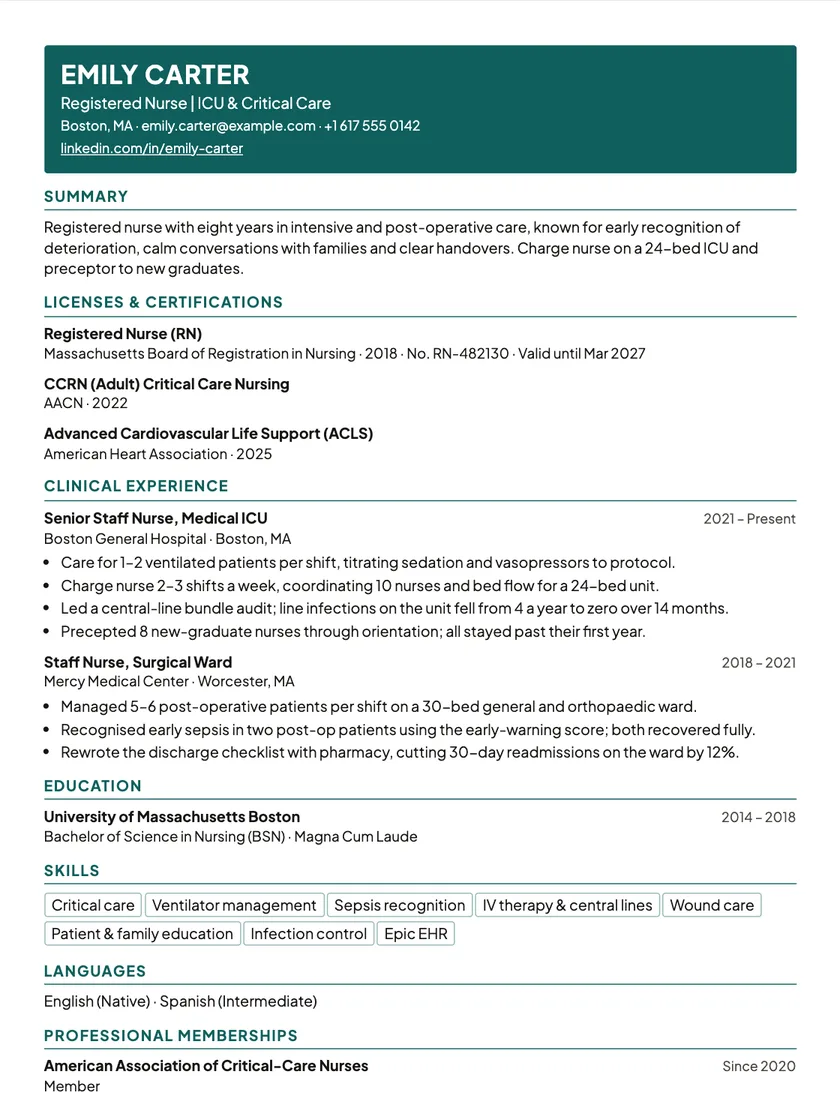
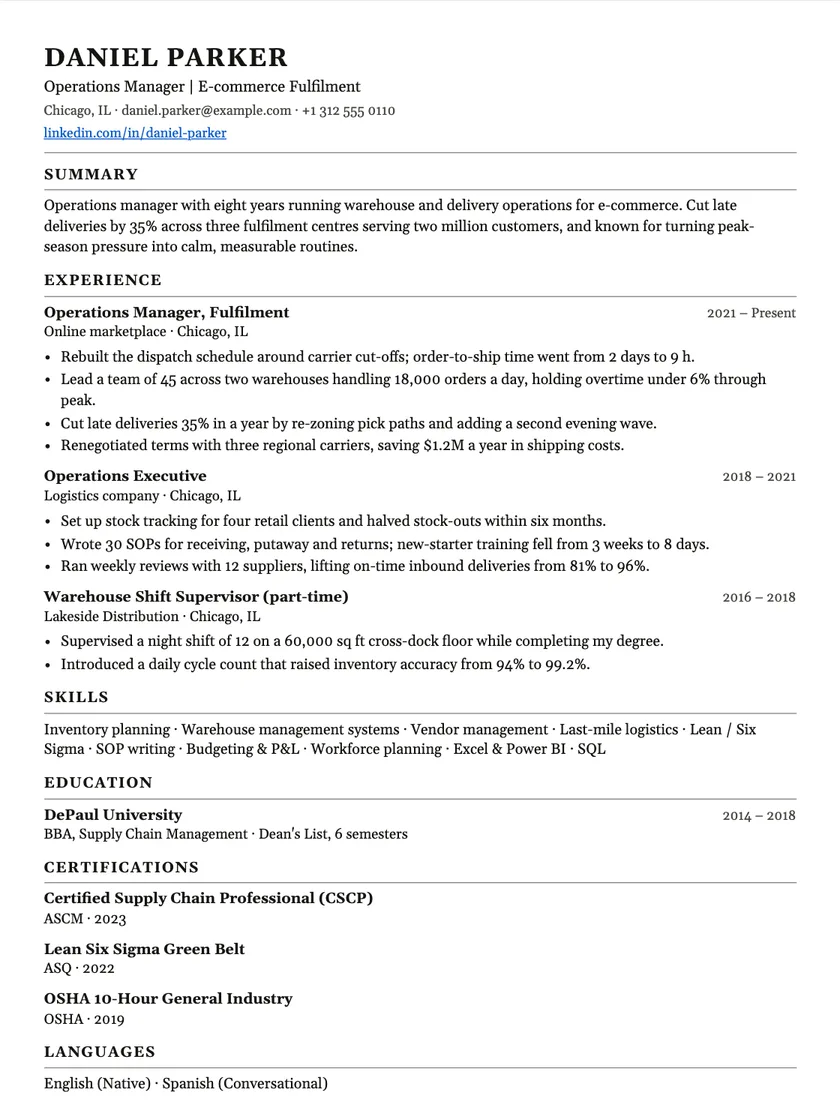
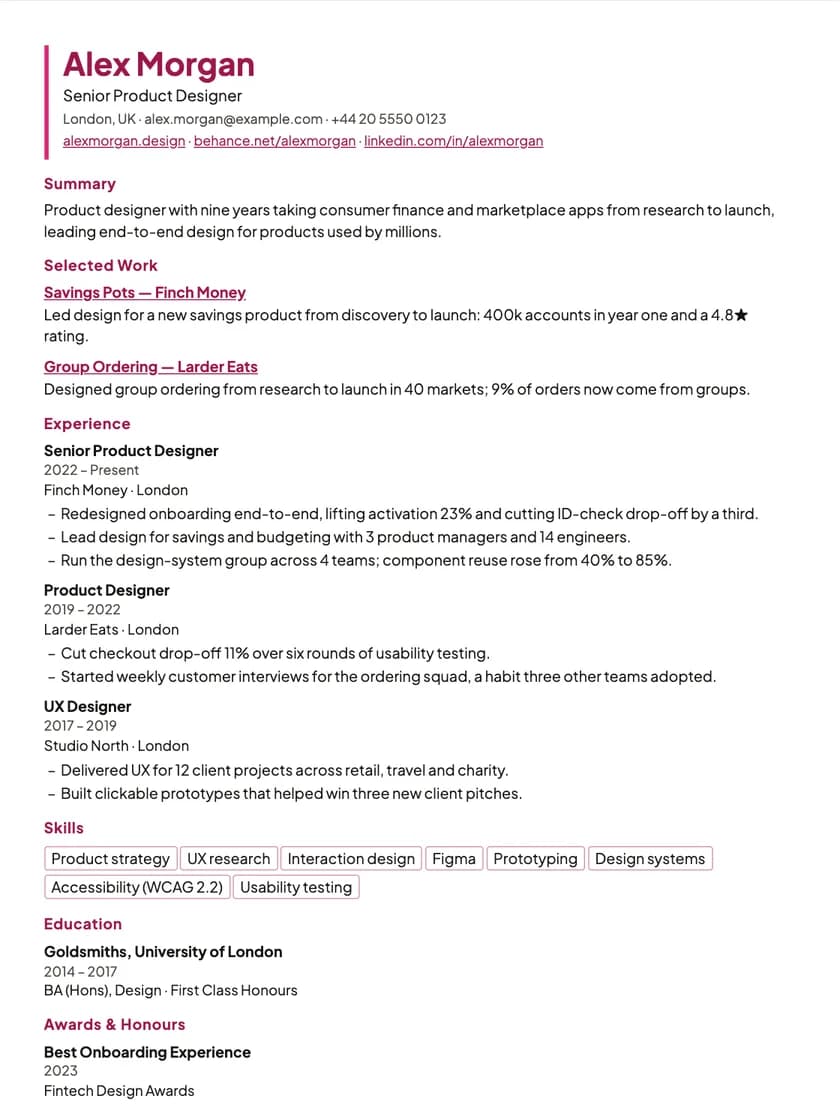
- ATS-friendly templates. Of the 30 resume and CV templates, 15 are one-column layouts in reading order with standard headings. The other 15 are design layouts, clearly labelled “Design · limited ATS” in the app, so you always know which is which. Switching template never changes your content.
- A free, instant ATS check. It shows how an applicant tracking system reads your resume, covering contact details, structure, content and format, and you can re-run it as often as you like. More on that on the ATS resume builder page.
- Keywords from the real job ad. The Job Matcher scores your resume against a job description you paste and lists what is missing. You add only the skills you actually have.
- Text-based PDF and Word files. Both exports carry the same content in the same order, and both are free on every plan.
If you already have a resume, you do not need to start again: import a PDF or Word file into your career profile, review what was found, and pick an ATS-friendly template. The resume builder page walks through the steps. And if you are not sure whether you need a resume or a CV for the job you are applying to, read resume vs CV: what’s the difference.
One honest caveat
Every employer configures its system differently, and some systems are much older than others. No tool can guarantee how a particular ATS will parse a file or rank an application. What you control is a clean format and content that genuinely matches the job, and those help with every system and every recruiter who reads your resume afterwards.